
ON THIS PAGE
Installing SmartSpace.ai
Effortlessly deploy SmartSpace.ai via Azure: Initiate with simple Entra setup. Select Standard or Pro plans for custom, secure AI integration…
Post-Install
Post-Installation
1. Log into the Admin UI
The Admin URL can be found in your deployed managed resource group. Open the link, and the first time you access the Admin UI, you will be prompted with a consent checkbox. Once consent is granted, proceed to step 2.
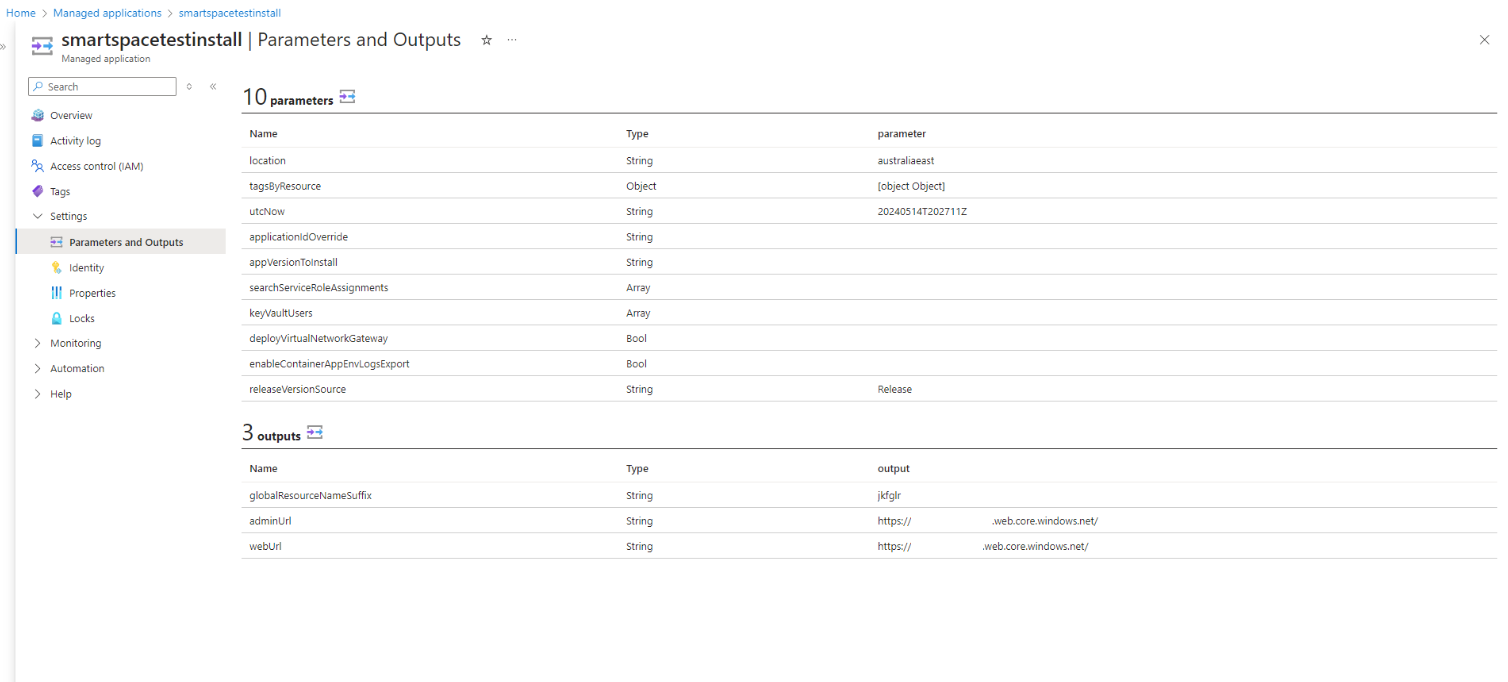
2. Granting Admin Consent to the SmartSpace Application
- Sign in to the Microsoft Entra admin center.
- Navigate to Identity > Applications > Enterprise applications > All applications.
- Enter “SmartSpace” in the search box, then select the application from the search results.
- Select Permissions under the Security tab.
- Review the permissions required by SmartSpace carefully. If you agree with them, click Grant admin consent.
3. Assigning Admin Users
- To assign admin users to SmartSpace, follow these steps:
- Open the Azure Portal and navigate to Microsoft Entra ID.
- In the left-hand navigation panel, select Enterprise Applications.
- Search for and open the SmartSpace application.
- Select Users and groups from the left panel.
- Click Add user/group.
- Under Users, select the users you want to assign the Admin role to.
- Under Select a role, choose the Admins role.
- Click Assign to complete the assignment.
- Admin users can now access the admin portal with the URL in step 1.
4. Deploying a model in Azure OpenAI / AI Foundry
How to create an Azure OpenAI resource, deploy a model via the Foundry portal, and request a quota increase when you hit the TPM ceiling.
Prerequisites
- An Azure subscription with permission to create Cognitive Services / Azure OpenAI resources.
- For viewing quota across a subscription: the Cognitive Services Usages Reader role assigned at the subscription level (not resource level). Add via Subscriptions → Access control (IAM) → Add role assignment. Reader on the subscription works too but grants broader access.
4.1 Create the Azure OpenAI resource
Portal route:
- portal.azure.com → Create a resource → search Azure OpenAI → Create.
- Basics tab:
- Subscription — the one onboarded to Azure OpenAI
- Resource group — new or existing
- Region — pick based on model availability (see note below)
- Name — e.g. myorg-openai-eastus
- Pricing tier — Standard S0
- Network tab — three options:
- All networks (default)
- Selected virtual networks + subnets
- Disabled, with private endpoints only
- Tags → Review + submit → Create.
- When provisioned, click Go to resource.
CLI equivalent:
az group create –name OAIResourceGroup –location eastus
az cognitiveservices account create \
–name MyOpenAIResource \
–resource-group OAIResourceGroup \
–location eastus \
–kind OpenAI \
–sku S0 \
–custom-domain MyOpenAIResource \
–yes
Region matters. Not every model is available in every region, and quota is per-region per-model. Check the Microsoft model summary and region availability table before picking.
4.2 Deploy a model via Foundry portal
- Sign in to ai.azure.com.
- View all resources → select the resource you just created.
- You may be prompted to upgrade to the new Foundry resource type. Either Next to upgrade or Cancel to stay on classic — both work for model deployment.
- Left pane: Deployments (classic) or Models + endpoints (upgraded Foundry, under My assets).
- + Deploy model → Deploy base model.
- Pick the model (e.g. gpt-5.4, gpt-5-mini) → Confirm.
- Fill in the deployment dialog:
- Deployment name — leave pre-filled. If you want specifically named models you can name them in SmartSpace when adding them.
- Deployment type — Global Standard: higher quota, traffic routed globally.
- Tokens per Minute Rate Limit (TPM) — in 1,000-token increments. This is what consumes your quota.
- Deploy. Status moves to Succeeded when ready.
CLI equivalent (10K TPM standard deployment):
az cognitiveservices account deployment create \
–name MyOpenAIResource \
–resource-group OAIResourceGroup \
–deployment-name gpt-4o-prod \
–model-name gpt-4o \
–model-version “2024-11-20” \
–model-format OpenAI \
–sku-capacity 10 \
–sku-name “Standard”
–sku-capacity is in units of 1K TPM — so 10 = 10,000 TPM. –sku-name accepts: Standard, GlobalBatch, GlobalStandard, ProvisionedManaged.
4.3 Understanding quota
Quota is allocated per subscription, per region, per model, per deployment type, and measured in Tokens Per Minute (TPM). RPM (requests per minute) is derived from TPM by a fixed ratio that varies by model:
| Model family | 1 unit of capacity | RPM | TPM |
|---|---|---|---|
| Older chat models (gpt-4, gpt-3.5) | 1 | 6 | 1,000 |
| o1 / o1-preview | 1 | 1 | 6,000 |
| o3 | 1 | 1 | 1,000 |
| o4-mini | 1 | 1 | 1,000 |
| o3-mini / o1-mini / o3-pro | 1 | 1 | 10,000 |
You cannot set TPM and RPM independently — you buy capacity units and both scale together.
Example: with 240K TPM of gpt-4o in East US, you can make one 240K deployment, two 120K deployments, or split it across any number of resources and deployments as long as the total stays ≤ 240K in that region.
View current quota
In ai.azure.com: Management → Quota. Shows used vs. approved per model per region with a bar graph per model class.
CLI:
az cognitiveservices usage list -l eastus
4.4 Requesting a quota increase
- Go to the quota request form: https://aka.ms/oai/stuquotarequest
- Also reachable via the Request Quota icon on the Foundry Management → Quota page.
- Fill in the form in this order — the fields unlock progressively as you select each one:
- Subscription ID — the subscription the quota lives against.
- Model type / Model source — pick Azure OpenAI for GPT / o-series (the OpenAI-branded models), or Models sold directly by Azure (a.k.a. “Azure direct models”) for the non-OpenAI first-party models. Community/partner models don’t appear here — they can’t be quota-increased.
- Request type — choose Model Deployment (PTU / RPM / TPM). This is the option for raising TPM on a model deployment. The other options on this form are for resource-count limits, not token throughput.
- Deployment type — in almost all cases pick Global Standard. It has the highest default ceilings and the fastest approval path. Only pick Standard (regional) if you have a hard data-residency requirement, or Provisioned Managed (PTU) if you’re buying reserved capacity.
- Region — the Azure region the deployment lives in. Quota is per-region, so request it where the deployment actually runs.
- Model — specific model name (e.g. gpt-4o, gpt-4o-mini, o3-mini). One request per model; submit multiple forms if you need several.
- Requested quota — the new total TPM you want (in thousands), not the delta. E.g. if you’re on 240K and want another 240K, request 480.
- Business justification — describe the workload, expected traffic, and why existing quota is insufficient.
- Submit. Requests are processed in order received.
What gets approved vs. denied:
- Priority goes to subscriptions that are actively using their existing allocation. If you’re sitting on unused quota in the same region/model, expect a denial or a request to justify.
- Requests in regions with capacity constraints (typically the newest models in East US / Sweden Central) take longer.
- If denied, try a different region where the model is available, or switch to Global Standard which has much higher default quotas.
- The form covers Azure OpenAI models, Foundry models sold directly by Azure, and Anthropic models. Community/partner models generally don’t support quota increases.
Tips that materially help approval:
- Show existing usage metrics — screenshots of Azure Monitor token usage help.
- Be specific about the spike pattern (e.g. “200 concurrent users, avg 2K input tokens, peak load 9am NZST”).
- If it’s for a customer deployment, name them and the rough contract size.
4.5 Common gotchas
- Rate limited but metrics say you’re under quota? Azure Monitor shows billed tokens. Rate limiting uses an estimated max token count at request time (prompt + max_tokens + best_of). Set max_tokens as low as realistically needed — bloating it burns quota even if the response is short.
- 429s when you’re well under limits — RPM is evaluated on 1s or 10s windows, not full-minute. Bursts get throttled even if the per-minute average is fine. Spread traffic out.
- Deleted a resource via API and now quota is stuck — portal deletes block on existing deployments (good). API/IaC deletes bypass this and quota stays allocated for 48 hours until purge. Use the purge-deleted-resource flow to free it immediately.
- Can’t find a model in your region — it probably isn’t deployed there yet. Check the model/region table before filing a quota request in the wrong region.
References
- Create an Azure OpenAI resource:
- Manage Azure OpenAI quota:
- Quotas and limits reference:
- Deployment types:
- Quota increase form:
You may find the following links useful:
